
If you use an Android phone, you’ve probably come across the term “APK” at some point. Maybe you wanted to download an app that isn’t on the Google Play Store, or maybe you wanted an older version of an app. Whatever the reason, installing APK files is actually pretty simple once you know the steps.
In this guide, we’ll walk you through everything you need to know, in plain and simple language.
What is an APK File?
APK stands for Android Package Kit. It’s basically the file format Android uses to install apps. Think of it like an .exe file on Windows, but for Android phones.
Every app you download from the Google Play Store is technically an APK file too. The difference is that Play Store installs it for you automatically. When you download an APK file yourself, you have to install it manually.
Why Would You Need to Install an APK Manually?
There are a few common reasons people install APKs outside of the Play Store:
- The app isn’t available in their country
- The app was removed from the Play Store
- They want an older version of an app
- They want to try an app before it’s officially released
- The app simply isn’t listed on the Play Store at all
Before You Start: A Word of Caution
Not every APK file on the internet is safe. Since you’re not downloading from the Play Store, Android doesn’t automatically check the file for you. So it’s important to only download APKs from websites you trust, and avoid random links sent through messages or unknown forums.
A good rule of thumb: if a website looks sketchy, has too many pop-up ads, or asks for unnecessary permissions, it’s best to stay away.
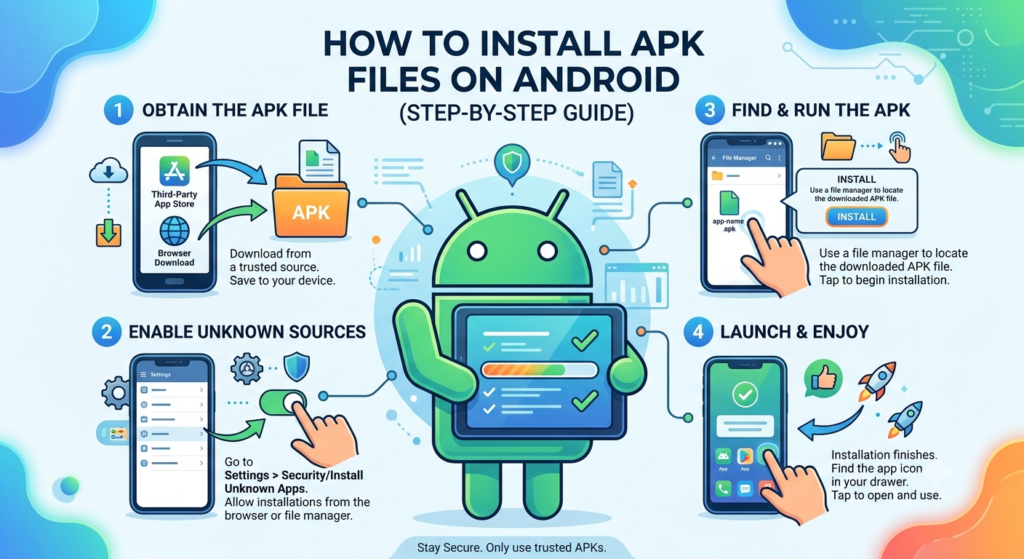
Step 1: Allow Installs from Unknown Sources
By default, Android blocks the installation of apps that don’t come from the Play Store. You’ll need to turn this off first.
The steps are slightly different depending on your Android version, but here’s the general process:
- Open Settings on your phone
- Go to Apps (or Apps & notifications)
- Tap Special app access
- Select Install unknown apps
- Choose the app you’ll use to open the APK file (usually your browser or file manager)
- Turn on Allow from this source
Note: On newer Android versions, you don’t turn this on globally. Instead, you allow it for a specific app, like Chrome or your file manager. This is actually safer, since it limits which apps can install other apps.
Step 2: Download the APK File
Once permissions are sorted, go ahead and download the APK file from your source. It’ll usually save into your Downloads folder automatically.
Step 3: Locate the File
Open your File Manager app (most phones come with one built in). Head to the Downloads folder, and you should see the APK file sitting there.
Step 4: Install the APK
Tap on the APK file. Android will show you a screen with some information about the app and the permissions it needs. Review this carefully, then tap Install.
Give it a few seconds, and once it’s done, you’ll see an Open button. That’s it — the app is now installed on your phone.
Step 5: Open and Use the App
Tap Open to launch it right away, or find the app icon later in your app drawer like any other app.
Common Problems and How to Fix Them
“App not installed” error This usually means the APK file is corrupted, incompatible with your phone, or there’s already a conflicting version installed. Try deleting the old version first, then reinstall.
Play Protect warning Google Play Protect might flag the app as unrecognized. You can choose to install anyway if you trust the source, or scan the file first using an antivirus app.
Installation blocked Double check that you allowed “Install unknown apps” for the specific app you’re using to open the APK.
A Few Safety Tips
- Stick to well-known, reputable sites for APK downloads
- Check app reviews or comments if the site has them
- Keep Google Play Protect turned on for background scanning
- Avoid granting apps permissions that don’t make sense (a flashlight app asking for your contacts, for example, is a red flag)
- Keep your phone’s software updated
Final Thoughts
Installing APK files isn’t complicated once you’ve done it a couple of times. Just remember the golden rule: download only from sources you trust, and pay attention to the permissions an app is asking for. Follow the steps above, and you’ll be able to install any APK safely and easily.